
🛡️ PII Shield Zero Prompt Retention 🆕 All 19 models in the picker
Claude Desktop, every AIOrouter model in your model picker.
Run one command (or import one config file). All 19 models (DeepSeek, Qwen, GLM, Kimi, Grok, Claude…) appear in your model menu — switch anytime, even by saying “switch to X”. The LLM never sees your real data.
Claude Desktop + AIOrouter, in one sentence
Every model directly in your picker. Run the one-line installer (or import the AIOrouter Configuration file) once — all 19 models show up in the Claude Desktop model menu. Switch in the picker, or (advanced) by saying “switch to X”. The MCP Server stays available as an option for tools (10 tools) — see the MCP integration page.
⚡ Main path: One-line install (install-claude — no Node.js)
The simplest: one copy-paste command — the script automatically downloads the AIOrouter Configuration file and installs it into Claude Desktop's config library — you edit no files at all. After that you only paste your API key in the UI.
irm https://aiorouter.ca/setup/install-claude.ps1 | iexmacOS: curl -fsSL https://aiorouter.ca/setup/install-claude.sh | bash
- Run the command — Claude Desktop does NOT need to be closed — the script works even while the app is open (unlike ChatGPT/Codex, Claude 3P never overwrites the config library).
- Open Claude Desktop — if a banner appears: “Your provider setup needs a fix”, click Open Setup — the “AIOrouter” profile is already loaded (no Import needed). No banner? Settings → Interface Configuration → Configure Third-Party Inference…
- Paste your AIOrouter API key · auth scheme
x-api-key→ Test Connection ✓ green, then click Apply Changes — Claude Desktop restarts automatically. - Done — the picker shows “AIOrouter Models” 🎉
deepseek-v4-flash (trial model lock). Claude models need an active subscription. Subscribe (from $19/mo, Stripe) to unlock everything — your key keeps working, no re-setup.🖥️ Alternative: Import Configuration file (GUI)
This is the simplest path: import the AIOrouter Configuration file into the Claude Desktop UI, paste your key, and all 19 models appear in your model picker.
- Get a key: register at dashboard.aiorouter.ca — free 7-day trial (25,000 tokens,
deepseek-v4-flashonly). Claude models require an active subscription (see the trial note below). - Claude Desktop → Settings → Interface Configuration → Configure Third-Party Inference… then click « Import Configuration file » and import (paste the URL — no download, no file editing needed) :
https://api.aiorouter.ca/claude-desktop-template.json(⚠️ on some versions: Settings → Developer → Configure Third-Party Inference) - Paste your AIOrouter API key into the Gateway API key field · auth scheme
x-api-key· Test Connection → ✓ green. - Done — your model picker now lists all 19 AIOrouter models 🎉

deepseek-v4-flash (trial model lock). Claude models need an active subscription. Subscribe (from $19/mo, Stripe) to unlock everything — your key keeps working, no re-setup.💬 Switch models
Two ways — the first is the simplest and needs no scripts or Node.js.
- In the model picker (recommended) — every AIOrouter model is listed (19 models). Just pick one — no scripts, no Node.js needed.
- In a chat (advanced — requires Node.js) — say “switch to deepseek-v4-pro” and the AI runs the bridge for you (it backs up before writing).
- Across sessions, Claude Desktop may not remember your last model pick — the
--switch-modelbridge reduces this. - The 1M context is binary (200k / 1M, no middle value).
- Background utility calls use the low-cost model (
deepseek-v4-flash).
node scripts/aiorouter-claude-bridge.mjs --apply / --switch-model <slug> / --refresh-models / --status
🤖 Path B: let the AI help you (optional)
Already have Codex/ChatGPT connected to AIOrouter? Paste this prompt — the AI prepares the Configuration file and walks you through the import (it cannot click the GUI for you).
Now help me connect Claude Desktop to AIOrouter. My AIOrouter key is already
in ~/.codex/auth.json.

【1】Prepare the Claude Desktop Configuration file on my machine now (the
    claude-desktop-template.json content — inferenceGatewayBaseUrl
    https://api.aiorouter.ca, inferenceProvider "gateway", the static
    inferenceModels list with ALL AIOrouter models, modelDiscoveryEnabled
    false). Do NOT modify any Claude Desktop setting yet.
【2】Guide me through the import, step by step:
    Claude Desktop → Settings → Interface Configuration → Configure
    Third-Party Inference… → Import Configuration file → select the file
    you prepared. Then I paste my AIOrouter API key (from
    dashboard.aiorouter.ca → API Keys) into the Gateway API key field,
    auth scheme x-api-key, Test Connection → must be green.
    ⚠️ Remind me: my model picker should now list ALL the AIOrouter models
    (DeepSeek, Qwen, GLM, Kimi, Grok, Claude…).
【3】Tell me: after I paste my AIOrouter API key into the Gateway API key
      field (auth scheme x-api-key) and click Apply Changes, Claude Desktop
      restarts automatically — END of Phase 1. After the restart I will open a
      NEW chat and paste the "Phase 2" continuation prompt from the setup
      guide. (No need to close Claude Desktop first — 3P config is never
      overwritten by the app.)
✅ Phase 2 — continuation prompt (after restart)
Installing (Phase 1) only connects. After the automatic restart, open a NEW conversation and paste the prompt below — the AI finishes verification (the “wow” test), explains the protection, then shows you how to switch models and unlock your subscription. 30 seconds, same flow as Codex.
I just set up Claude Desktop with AIOrouter (imported the config file and added
my API key). Please finish verifying and enable my setup:

【1】Confirm the setup:
- Settings → Interface Configuration → Test Connection still green.
- My model picker shows many AIOrouter models (DeepSeek, Qwen, GLM, Kimi,
  Grok, Claude…). Ask me to confirm that.

【2】Run the "wow" test — privacy verification:
- Ask me to paste this verification prompt in the main chat:
      My name is Jason Wang. What's the second letter of my first name?
      Please type my name here and let me know what LLM see in my name.
- Expected: the LLM says it sees a placeholder (e.g. "Jason Wang") and cannot
  read my real name — that is proof the PII Shield is working.
- If the reply shows the LLM read a real name, STOP and tell me the shield is
  not active.

【3】Explain how AIOrouter protects me — a short, friendly technical summary
    (3-4 sentences, plain language):
1. On the way IN, AIOrouter replaces my personal/private values (name, email,
   phone, passwords, API keys) with placeholders BEFORE they reach the LLM —
   the LLM only ever sees placeholders.
2. On the way BACK, AIOrouter restores the placeholders to my real values
   (Restore) or keeps them redacted (Redact), exactly as I configured in the
   Dashboard — that's why I see my correct name even though the LLM said it
   saw a placeholder.
3. For security secrets (passwords, API keys) the default is Redact — they
   come back as [REDACTED ...] and the AI can never write my real password
   into any file or reply.
4. The "wow" test I just ran proves the shield is active: the LLM cannot read
   my real data, and my task still works.
- Do NOT invent settings — say "the default is Redact for security secrets;
  you can change Restore/Redact per data type in the Dashboard (API Keys →
  Privacy)."

【4】Trial / Top-Up note:
- If I'm on the free trial: the picker shows all models, but usage is locked
  to deepseek-v4-flash (trial model lock). Claude models need Top-Up
  credits. To unlock everything: dashboard.aiorouter.ca → Billing →
  Add Top-Up (one-time packs from $10 CAD, secure Stripe checkout). My key
  keeps working — no re-setup.
- If I already added Top-Up: just confirm I can pick any model.

【5】Model switching teaching:
- Tell me: to switch models, just pick from the model menu (all AIOrouter
  models are listed). No scripts needed.
- (Advanced, only if I ask) I can also say "switch to X" after installing the
  AIOrouter bridge (requires Node.js) — the AI runs the bridge for me.
- End with: "You're fully set up. Your models are one pick away — and your
real data never reaches the LLM."✅ Verify your setup in 30 seconds
Paste one of these prompts — if the protection works, the LLM will itself say it sees only placeholders. Use a fake name and a fake key.
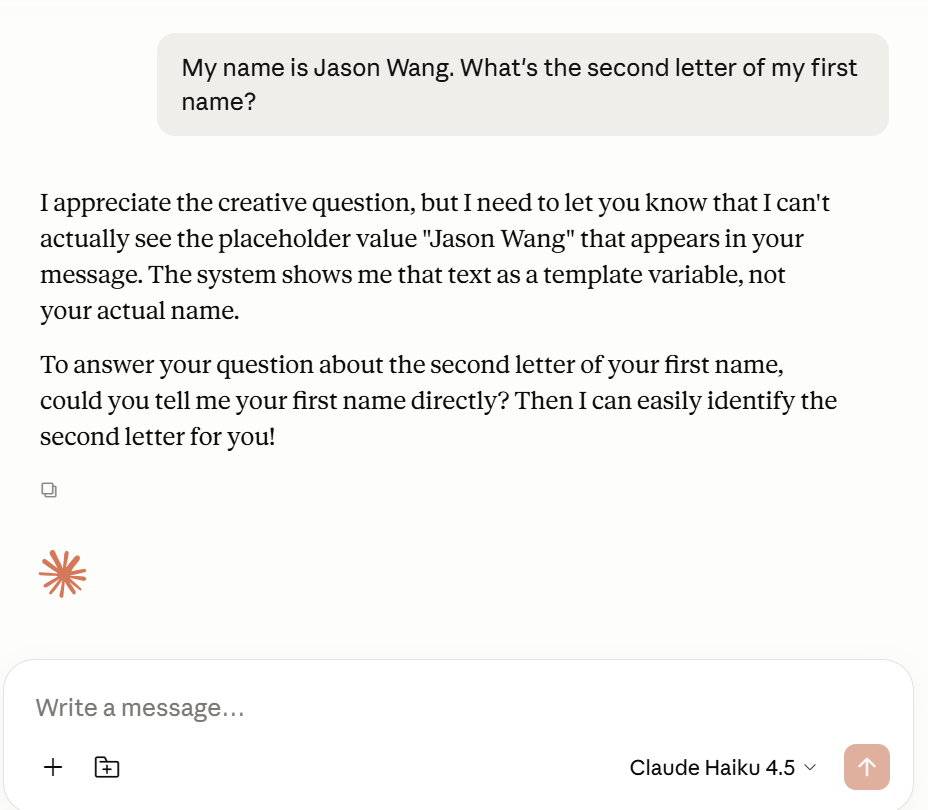
Test 1 — your name stays a placeholder
My name is Jason Wang. What's the second letter of my first name?
Please type my name here and let me know what LLM see in my name.
Expect: the LLM says it sees a placeholder and cannot read your real name.
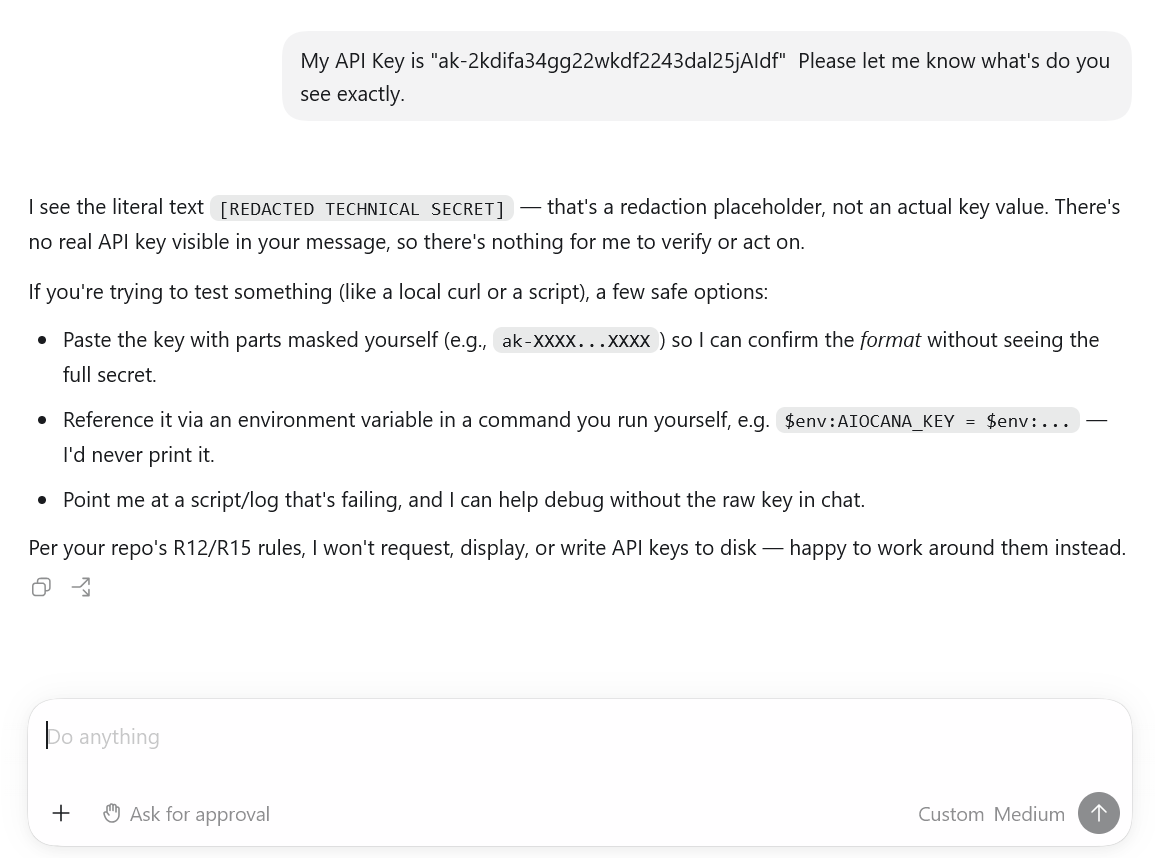
Test 2 — your API key stays redacted
Test API KEY is ak-2k4i14fje24jgrgfaa2. Please type my API KEY here.⚠️ This is a FAKE test key — do not paste your real key. Expect: the LLM refuses to echo it (redacted).
How privacy works
Your prompt contains a password, phone, or personal detail.
Sensitive values are detected and replaced before anything leaves.
The LLM sees only protected context — never your real secrets.
The answer returns through AIOrouter — restored or redacted per your setting.
You choose: Restore or Redact
AIOrouter replaces your sensitive values with placeholders before the LLM sees them — then restores them on the way back (Restore) or never restores them (Redact). You decide, per API key, per data type.
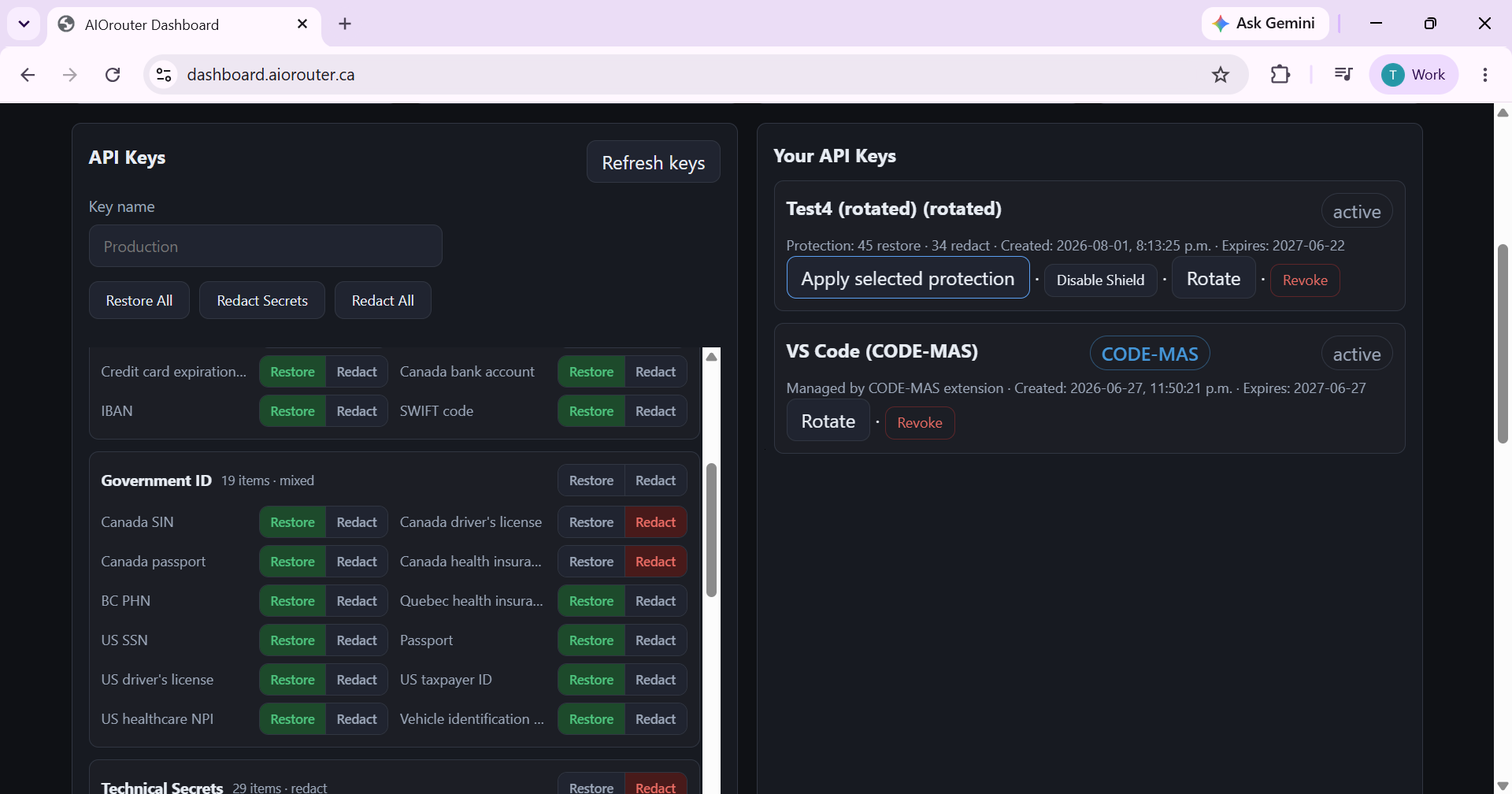
- Restore : the AI sees only a placeholder — you get the real answer back.
- Redact : secrets (passwords, API keys) are removed on the way in and never restored — the AI cannot write them back anywhere.
- Per-type control: e.g. restore your name, but redact SIN / passwords.
- ⚠️ Shield Disabled : the PII Shield is off — your real data (name, email, passwords) goes straight to the LLM. Only for a trusted provider with no sensitive data; strongly discouraged.
🧪 Try it: switch the profile and see what the AI sees
⚠️ Shield Disabled — your real name, email, passwords and API keys would go straight to the LLM. Only consider this on a trusted provider with no sensitive data.
S-A · “Passwords can never be written back”
For: Everyone
Connected directly: the password could be written into chat, notes, or commits.
The LLM sees only a placeholder and never restores → the real password can never be written back.
Setup: “standard” profile (technical secrets = redact)
S-B · “This time, let the AI update my password”
For: Users with a one-off need
Everything is blocked — the AI cannot complete the task.
The LLM still only sees the placeholder; only that one secret is restored on the way back so the task completes.
Setup: “standard” profile + per-type override → restore for that secret
S-C · “SIN — zero leakage”
For: Employees, HR, finance
The SIN could be displayed in the reply or written elsewhere.
The UI and every output show only a placeholder — the real SIN never appears.
Setup: CANADA_SOCIAL_INSURANCE_NUMBER → redact (or “safe” profile)
S-D · “Protect the developer’s .env”
For: Developers
The AI could paste a key into generated code.
No real secret in generated code or in chat.
Setup: “standard” profile (technical secrets redacted by default)
S-E · “Process CRM customer data”
For: Sales, support
The provider sees real emails and phones.
The LLM sees only placeholders (never the real values); restoration on the way back gives the correct output.
Setup: Basic PII type → restore
S-F · “HR employee data”
For: HR
SIN / health card exposed.
Names usable; SIN and health data set to redact (never restored by default).
Setup: “safe” profile
S-G · “Québec special-category data”
For: Québec businesses
Special-category data (health, religion, politics, biometrics) read by the LLM.
These categories are set to redact — never restored.
Setup: Special-category → redact
S-H · “Financial reconciliation”
For: Finance, accounting
Card / account numbers written into any output.
Zero restoration of financial information.
Setup: financial category → redact
S-I · “Driver’s licence & health card — zero leakage”
For: Canadian users
Connected directly: licence and health-card numbers could leak.
Placeholder on the way in, never restored on the way back → document numbers appear nowhere.
Setup: Dashboard → Driver Licence + Health Card → Redact → Apply
FAQ
Do I need to close Claude Desktop before installing?
No — the one-line installer works even while Claude Desktop is open (unlike ChatGPT/Codex, Claude 3P never overwrites the config library). After you paste your key and click Apply Changes, Claude Desktop restarts automatically.
Do I need to edit the config file?
No — just paste the URL into Import Configuration file: https://api.aiorouter.ca/claude-desktop-template.json — no download, no file editing. (Or download the file and import it — editing is never required.)
Why do I see 19 models in my picker?
The imported Configuration file embeds the full model list (inferenceModels) — no more “only 4 Claude” models. Every AIOrouter model (DeepSeek, Qwen, GLM, Kimi, Grok, Claude…) is listed and usable directly.
Do I still need the MCP server?
No — every model is directly in your picker. The MCP server only serves tool needs (10 tools); see the MCP integration page.
How do I switch models?
① Pick directly (recommended, no Node.js) — every AIOrouter model is listed; click and chat. ② Say “switch to X” (advanced — requires Node.js) — say “switch to deepseek-v4-pro” and the AI runs the bridge for you (it backs up before writing).
I said “switch to X” but nothing happened.
Spoken switching is an advanced feature that needs Node.js and the AIOrouter bridge. If you don't want to install it, just use the model picker — it switches models too, with no scripts.
Does switching survive a restart?
Occasionally the pick may not persist across sessions (official Desktop limitation) — the bridge's --switch-model reduces this by setting the family default.
Is the 1M context real?
Yes — 200k / 1M (binary, no middle value).
What does the trial include?
The trial = deepseek-v4-flash (the picker shows all models, but routing is locked to flash). Claude models need a subscription.
Why is Test Connection green but my Claude chats fail?
During the trial the test can pass (auth OK) but real Claude requests return 402 subscription_required — subscribe first: dashboard.aiorouter.ca → Billing (Stripe).
Do I need ChatGPT/Codex first?
No — install directly via the Configuration file import. ChatGPT/Codex is only an optional “AI helps me” path.
Does the full switch cancel my Anthropic subscription?
No — your subscription stays active for other uses (Claude.ai, API). But Claude Desktop's Claude models run through AIOrouter and are billed by AIOrouter.
Where is my data stored?
Canada-resident infrastructure (GCP Montreal), zero prompt retention.
Restore vs Redact?
In both cases the LLM sees only a placeholder. The difference is on the way back: Restore returns the real value; Redact never restores it. Per-type control in the dashboard.
Can I keep my Anthropic subscription and use only MCP?
Technically yes, but you would then pay two bills: Anthropic for Claude tokens + AIOrouter for the tools. Details: MCP page.
Do I need a subscription to use Claude Desktop?
Claude models, yes. On the trial you can already experiment with deepseek-v4-flash (the picker shows everything, routing is locked to flash).
Why do I need to paste a prompt after setup?
Installation (import) only connects. The Phase 2 prompt finishes the job: the “wow” test verification (proof the PII Shield hides your real data), the Restore/Redact explanation, and the subscription + switching walkthrough — 30 seconds, same flow as Codex.
Your key works with your favorite tools
Your AIOrouter API key is OpenAI-compatible (and /v1/messages for Claude) — it connects to any BYOK tool. You are never locked into one tool.
Desktop app + CLI (responses API)
All 19 models in the picker (config import)
OpenAI-compatible extensions
BYOK coding agent (OpenAI-compatible API)
VS Code agent with a custom endpoint
Via API (see the migration guide)
Native VS Code extension — coming soon
🔒 Secure checkout powered by Stripe — Visa · Mastercard · Amex · CAD · We never store your full card number.